
Printing numerous PDF documents can be a tedious and time-consuming task if done individually. Print Conductor is a dedicated batch printing software that streamlines this process, allowing you to seamlessly print multiple PDF documents at once without the need to open each file.
The software supports virtually all PDF standards, including PDF/A, PDF/X, password-protected PDF, and PDF Portfolio documents with attachments, giving you full control over customization for high-volume printing needs.
Quick Start: 3 Steps for Batch PDF Printing
To begin printing multiple files immediately, follow these simple steps:
-
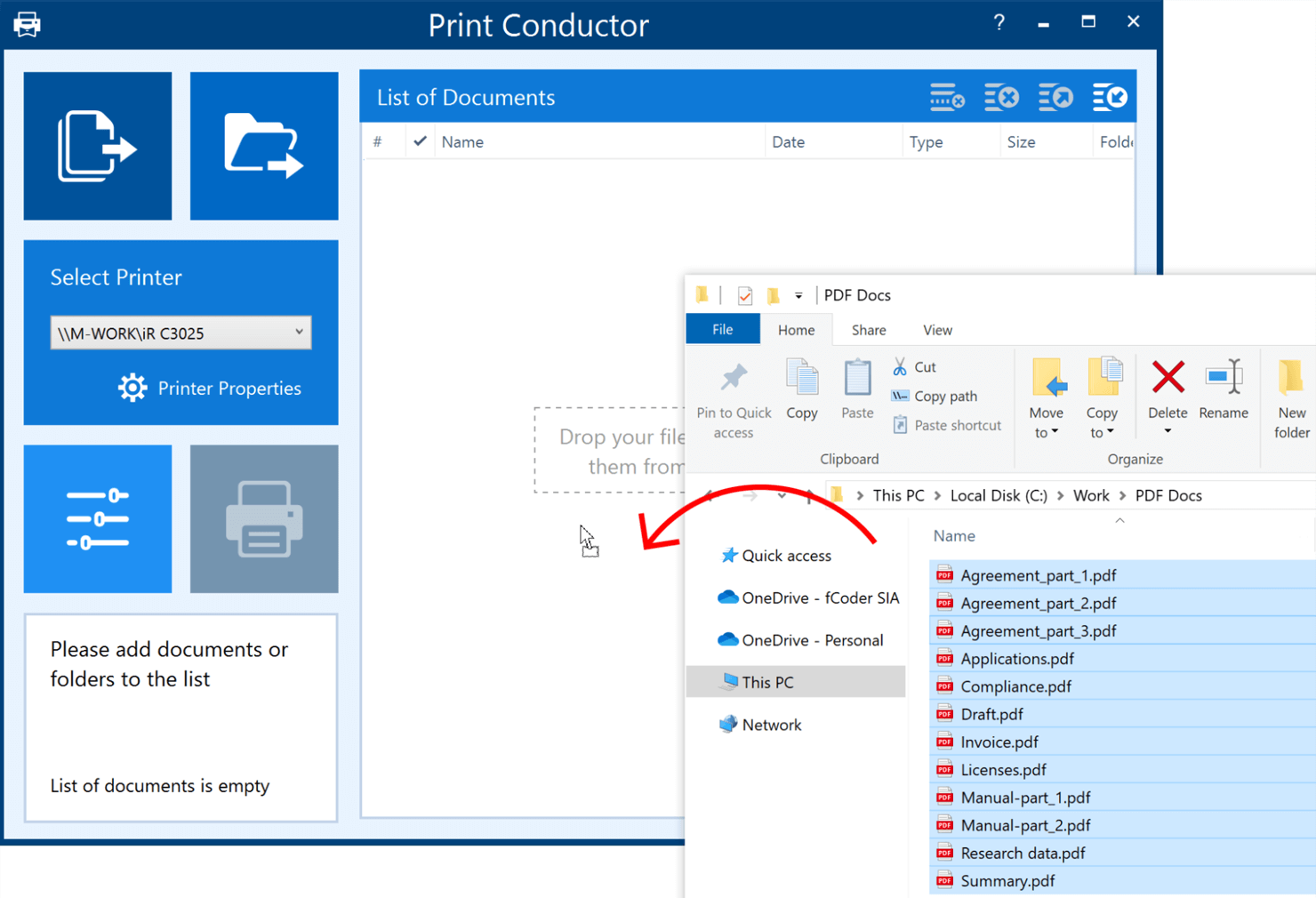
1. Add PDFs to the List: Drag-and-drop your PDF files into the Print Conductor window, or use the Add documents / Add folder buttons to load your queue.
-
2. Select the Printer: Choose any printer available in your Windows system from the dropdown menu.
-
3. Start Printing: Click the Start Printing button. The software will process and send all documents to the printer automatically.
Configuring Basic Print Settings for PDFs
For more control over the automated process, you can access the basic settings by clicking the Settings button on the main window and navigating to the Common Settings tab. These settings are crucial for efficient PDF printing:
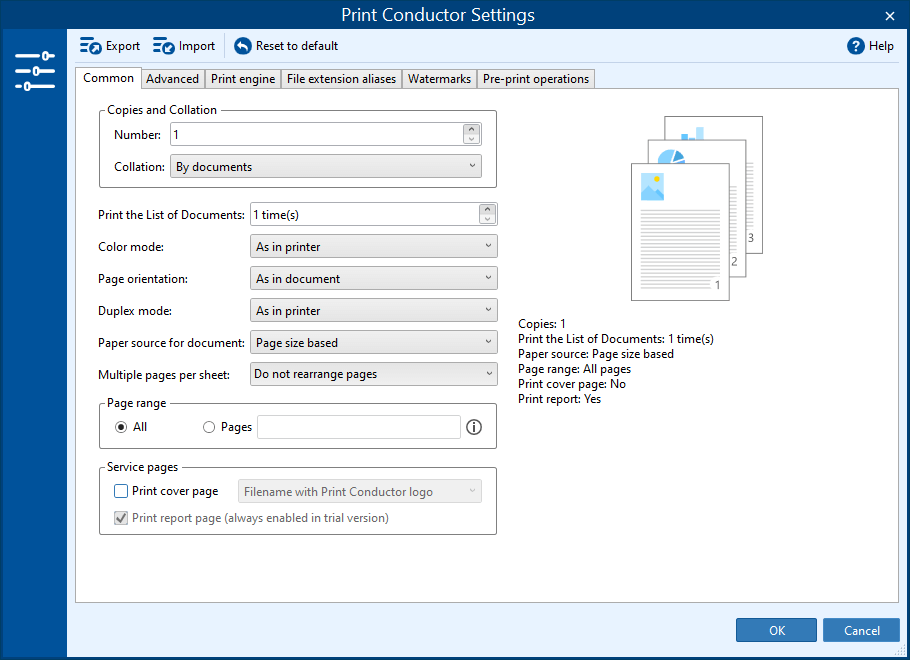
- Copies number: Set the total number of copies required for the entire batch.
- Collation: Choose between "By documents" (default, prints each document set complete before starting the next copy) or "By pages" (prints all copies of page 1, then all copies of page 2, etc.).
- Color mode: Select Grayscale (black and white) or Color. The default setting is As in printer, allowing the driver to control the output.
- Page orientation: Override the document's embedded settings by selecting Portrait or Landscape. Default is As in document.
- Page range: Specify a precise range of pages to print using commas or hyphens (e.g., "5", "3,11,15", or "10-13").
- Duplex mode: Enable one-sided or double-sided (duplex) printing to save paper. You can also select specific vertical or horizontal duplex settings.
- Paper source for document: Automatically choose the tray based on document size (Page size based) or manually select an available printer tray from the dropdown list.
- Multiple pages per sheet: Arrange several PDF pages onto a single sheet of paper for compact printing.
Advanced PDF Printing Customizations
For fine-tuning the output, you can explore settings under the Printer Properties button and Print Conductor's Advanced Settings:
-
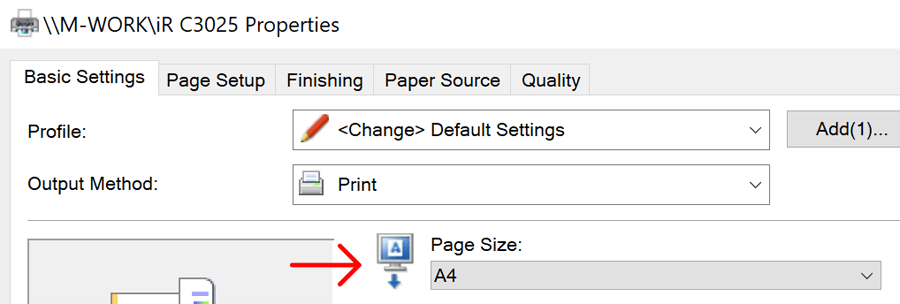
Page Size and Paper Size: Ensure the printer's paper size matches the PDF's dimensions (A4, Letter, etc.). You can modify this in the external Printer Properties or within Print Conductor's Advanced settings.
-
Page Scaling: Control how the PDF pages fit the paper. Options like Shrink (default), Fit, Original, or Zoom level (for manual scaling) can be adjusted in the Advanced Settings.
-
Print Quality: Define the resolution (DPI). While the default is As in printer, you can enforce High, Medium, Low, or Draft resolution within Print Conductor's Advanced Settings. High DPI (600+) is recommended for images; 300 DPI suffices for standard text documents.
-
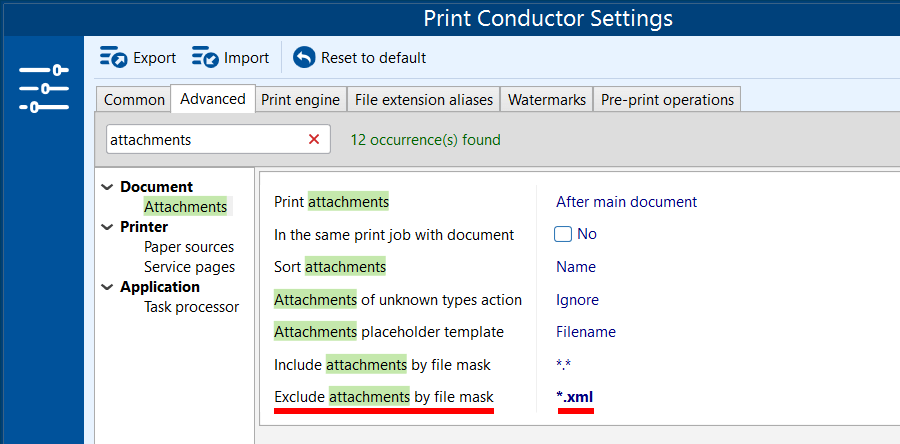
Printing with or without Attachments: Manage associated files within PDF Portfolios. You can set the program to Ignore all attachments or use an Exclude attachments by file mask setting to prevent specific file types (by extension or file name) from being printed.
Advantages of Using Print Conductor for PDF Batch Printing
| ✓ | High-quality, error-free batch print outputs. |
| ✓ | Ability to process an unlimited number of files in one session. |
| ✓ | Support for all complex PDF types, including password-protected and PDF Portfolio files. |
| ✓ | Printing PDFs directly from RAR or ZIP archives without requiring manual extraction. |
| ✓ | Seamless printing of PDF attachments directly from Outlook emails via drag-and-drop. |
| ✓ | Flawless processing of "non-standard" PDFs (containing special symbols or unusual characters). |
Print Conductor serves as a comprehensive tool to save time and effort by consolidating complex printing tasks into one automated workflow.
Frequently Asked Questions (FAQ) 😊
Here are answers to common questions about using Print Conductor for batch printing! :D
Q: Can Print Conductor handle password-protected PDF files?
Yes, Print Conductor is fully capable of processing and printing password-protected PDF files. You will typically be prompted to enter the password once, and the software will then apply it to all corresponding secured documents in the batch.
Q: What is the benefit of using "Collation: By documents"?
When printing multiple copies of multiple documents, the "By documents" collation setting ensures that the entire first document set is printed completely, followed by the entire second document set, and so on. This keeps complex document packages or portfolios correctly ordered without manual sorting.
Q: Can I print an entire folder of PDFs at once?
Absolutely. You can use the "Add folder" button in the main window to quickly import all supported document types, including PDFs, from a specified folder into your print queue, enabling true bulk processing.