
The HEIC (High Efficiency Image File Format), often seen with the .heif extension, is the default photo format for modern Apple devices. As this format grows in popularity, the need for efficient batch printing solutions on Windows has increased. Print Conductor 8.0 and later versions introduced native support to handle these files, but they require proper codec installation on the Windows system itself.
Prerequisite: Installing Required HEIC Codecs
For Print Conductor to successfully process and print HEIF/HEIC files, your Windows operating system must be able to recognize and render them. You only need one of the following two options:
- Option 1 (Free): Install ImageMagick.
- Option 2 ($0.99): Install the official HEIF and HEVC codecs from the Microsoft Store.

1. Install Print Conductor and Codecs: Complete the installation of Print Conductor and select either the ImageMagick or the HEIF/HEVC codec package.
Installing ImageMagick (Free Option)
ImageMagick is a free, open-source software suite used for displaying, converting, and editing raster image files.
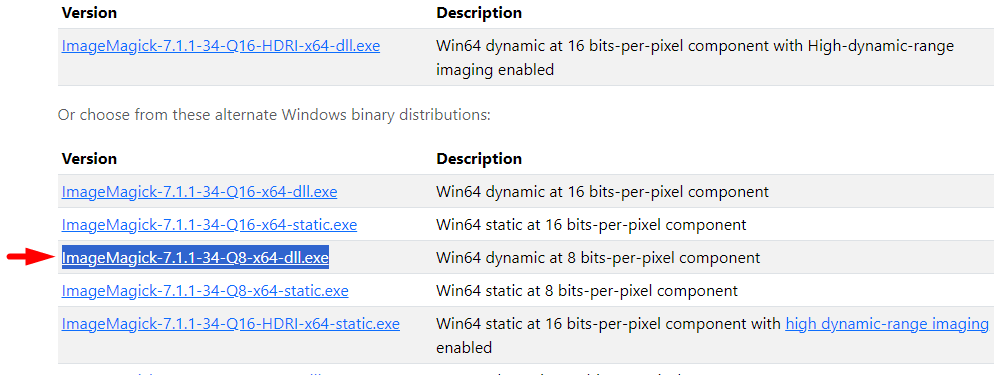
- Go to the ImageMagick download page for Windows.
- Download and run the installation file (e.g., *ImageMagick-7.1.1-34-Q8-x64-dll.exe*).
- Follow the setup wizard to complete the installation.
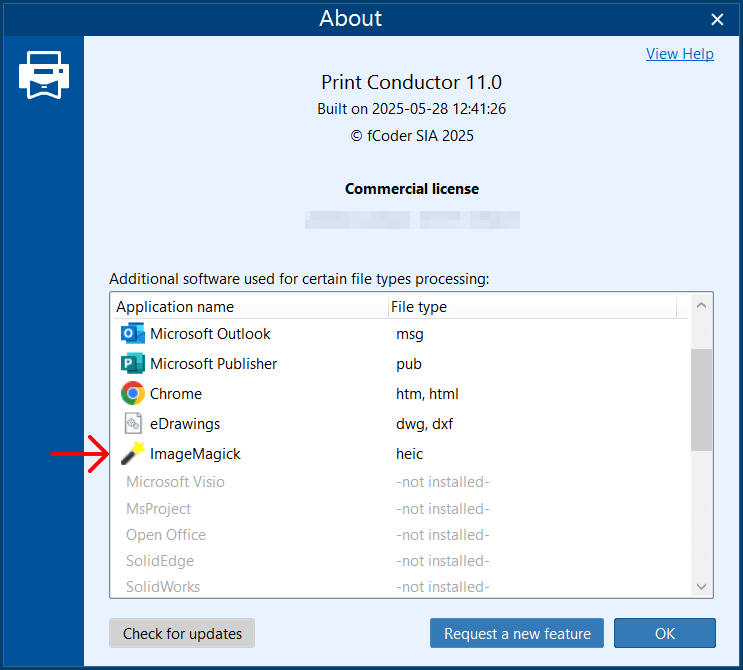
Once installed, you can confirm Print Conductor recognizes ImageMagick by checking the Help menu (the "?" icon) in the program's main interface.
Installing Windows HEIF and HEVC Codecs (Microsoft Store Option)
For native integration with Windows 10/11, you can purchase and install two extensions from the Microsoft Store:
- HEIF Image Extensions
- HEVC Video Extensions
Step-by-Step Guide to Batch Printing HEIC Photos
Once the necessary codecs or ImageMagick are installed, you can proceed with printing your HEIC files using Print Conductor:
-
2. Open Print Conductor: Launch the application. A trial version is available if you wish to test the full features before purchase.
-

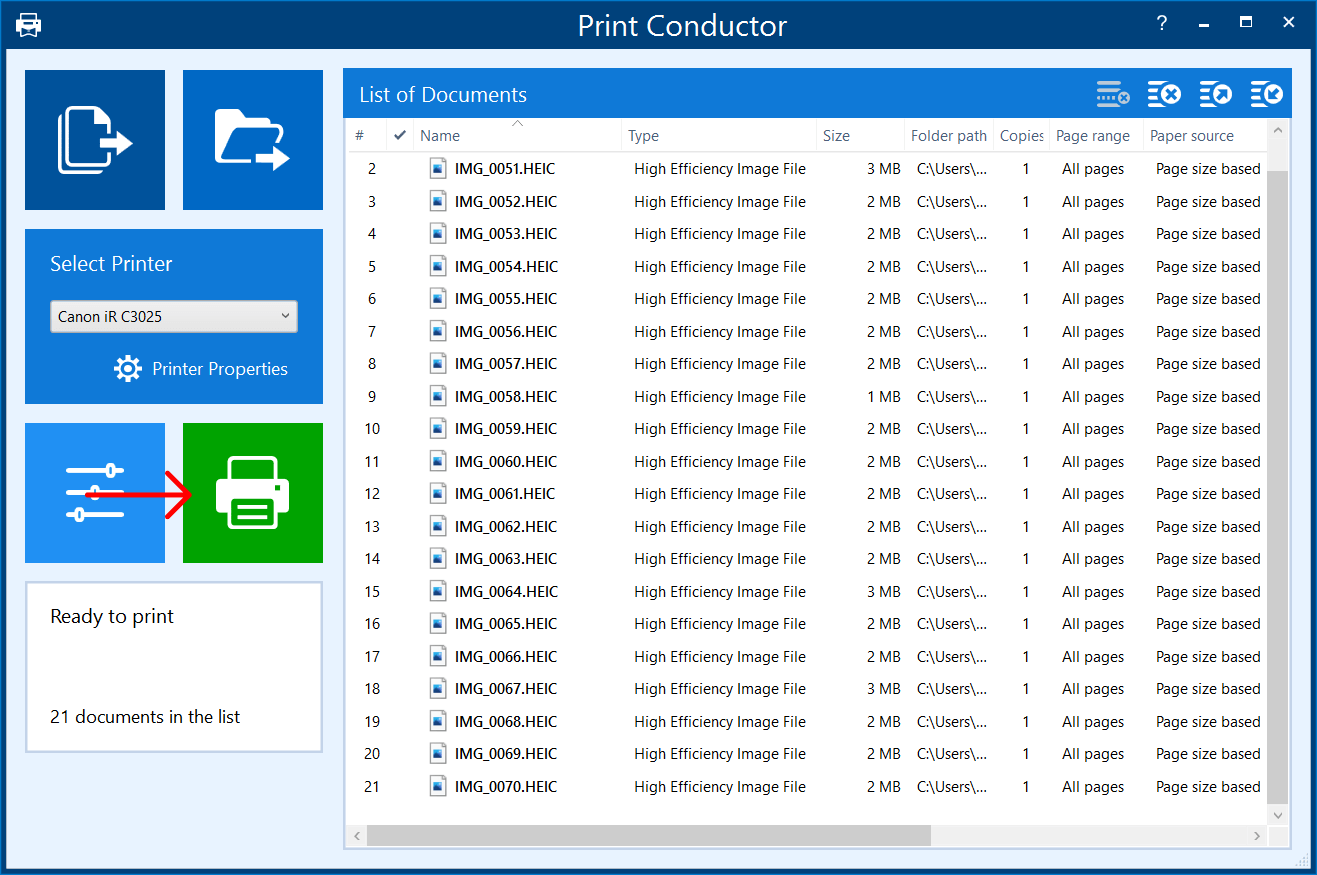
3. Add HEIC Files to the List: Add your `.heic` or `.heif` files by drag-and-dropping them into the main window, or by using the Add Documents / Add Folder buttons. Files within archives (like ZIP) can also be added without extraction.
-

4. Start Printing: Once your list is complete, click the Start Printing button to begin the automated batch process.
Customizing Print Settings
Print Conductor provides two ways to modify printing parameters:
1. Global Settings (Applies to all files)
Click the Settings button on the main toolbar. Changes made here (e.g., default number of copies, paper handling) will be applied to every file currently in the List of Documents.
2. Item-Specific Settings (Applies to selected files)
To apply different settings to individual HEIC photos or a subset of files:
- Select the desired file(s) in the List of Documents.
- Right-click on the selection and choose Item settings...
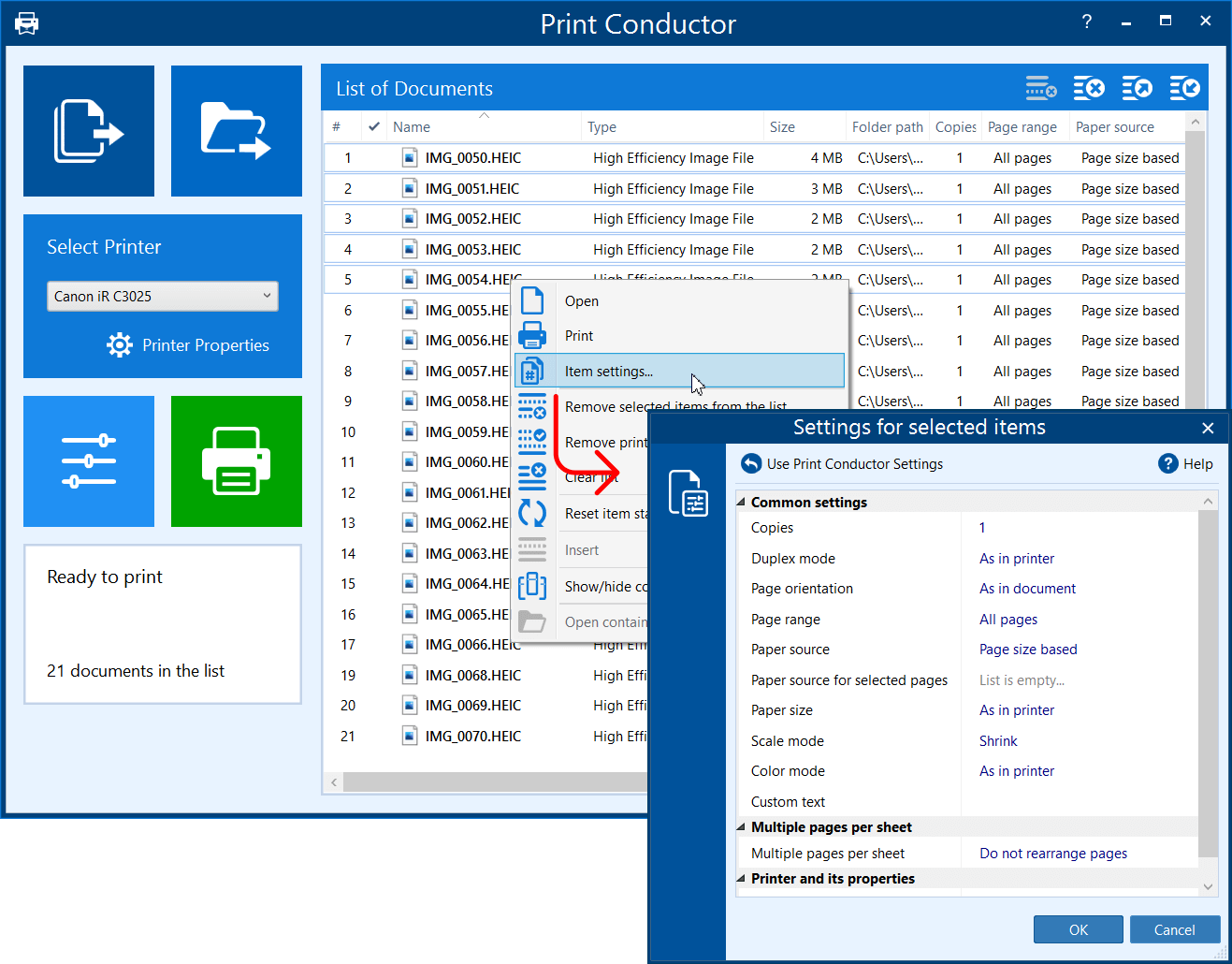
In the Item settings dialog, you can adjust parameters like specific image orientation, paper size, and number of copies for just those selected files.
Frequently Asked Questions (FAQ) 😊
Here are answers to common questions about printing HEIC files on Windows! :D
Q: Why do I need additional software (codecs) just to print HEIC files?
HEIC/HEIF is a proprietary format, primarily used by Apple, and is not natively supported by older or standard Windows installations. Print Conductor needs Windows to first recognize and decode the HEIC file data. The codecs (ImageMagick or the Microsoft Store extensions) provide Windows with the necessary decoding libraries to handle the files correctly.
Q: What happens if I try to print HEIC files without installing the codecs?
If the required codecs are missing, Print Conductor will not be able to process the file's data. The application will likely report an error or simply skip the HEIC files in your batch list during the printing session, as the Windows system cannot pass the image information to the printer driver.
Q: Can I use Print Conductor to print HEIC files that are compressed in a ZIP archive?
Yes. A major convenience of Print Conductor is its ability to handle compressed files. You can add ZIP archives containing HEIC photos directly to the document list without having to manually extract all the images first.